The Git Configuration tab in Settings is the central location for managing connections to source control providers. Instead of configuring repository connections while working on a model, you can create and manage credentials, repository connections, and Git activity from a single location.
Repository connections are model-specific. Each model requires its own repository connection, even when multiple models use the same repository. This approach helps maintain separate configuration and authentication settings for each model.
To set up Git configuration, select  in the left navigation bar. The Git Configuration tab contains the following three subtabs:
-
Credentials: Save personal access tokens that authenticate Git operations
-
Repositories: Define and manage the repository connections that models use
-
Audit Log: Review a history of every Git operation, with its user, status, and duration
Prerequisites
-
Ensure that you have access to a Git repository on a supported provider (GitHub, Azure DevOps, GitLab, or Bitbucket) with permission to create branches and pull requests
-
Create a personal access token with the required scopes from your provider.
Manage Git Credentials
The Credentials tab stores the authentication that Git operations rely on. The same credential is used to authenticate clone, push, pull, and pull-request operations, so you set it up once and reuse it. Each stored credential is listed with its Provider, Type, Server URL, Expiry, and Actions.
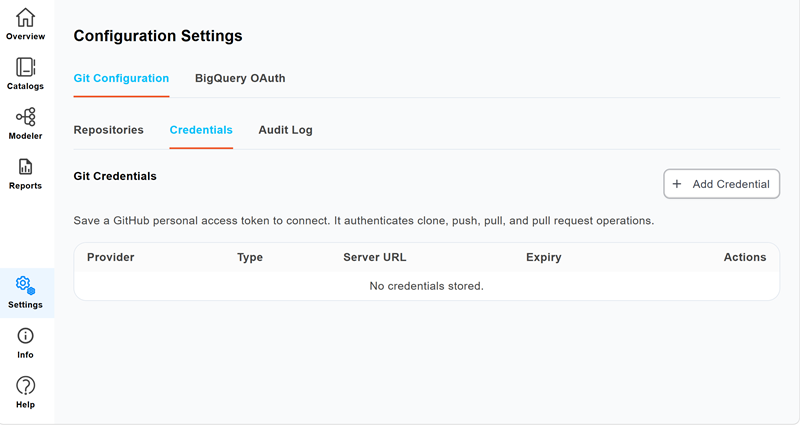
To authenticate enter a personal access token manually. This method is available for all supported providers (GitHub, Azure DevOps, GitLab, and Bitbucket).
To add a credential, follow these steps:
-
On the Credentials tab, select Add Credential.
The Git Credentials page opens.
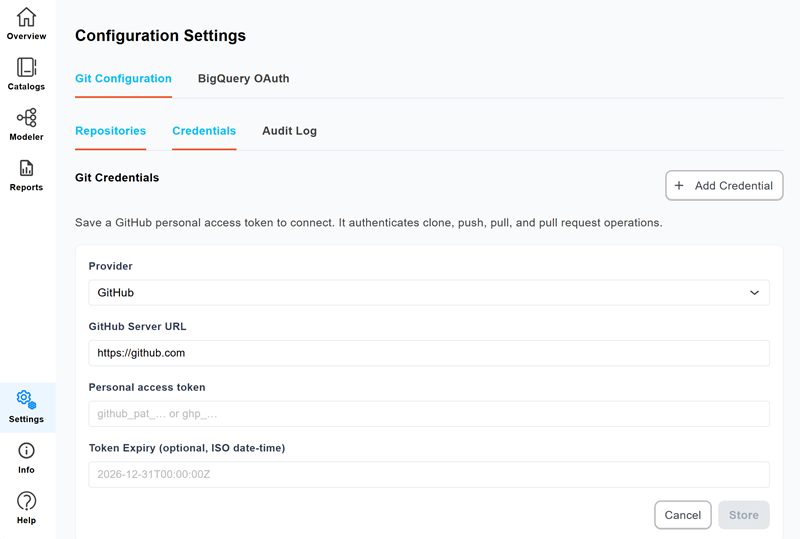
-
From the provider list, select your provider. For example, GitHub.
-
Enter your personal access token.
-
Enter the Server URL. For example, https://github.com.
-
Optionally, specify the token expiration date and time in ISO 8601 format.
-
Select Store.
Your credentials are stored. You can now set up a repository configuration.
Manage Repository Configurations
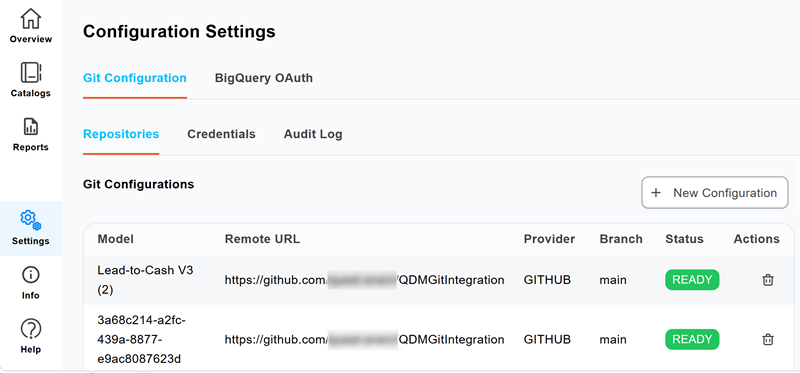
The Repositories tab lists the existing Git configurations along with their Model, Remote URL, Provider, Branch, Status, and Actions. A status of Ready indicates that the repository is cloned and available for Git operations. Use the Actions column to remove a configuration that is no longer needed.
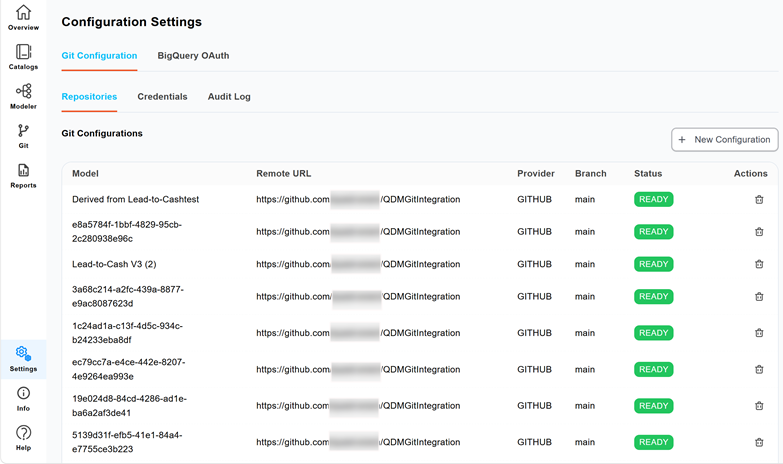
To add a repository connection, follow these steps:
-
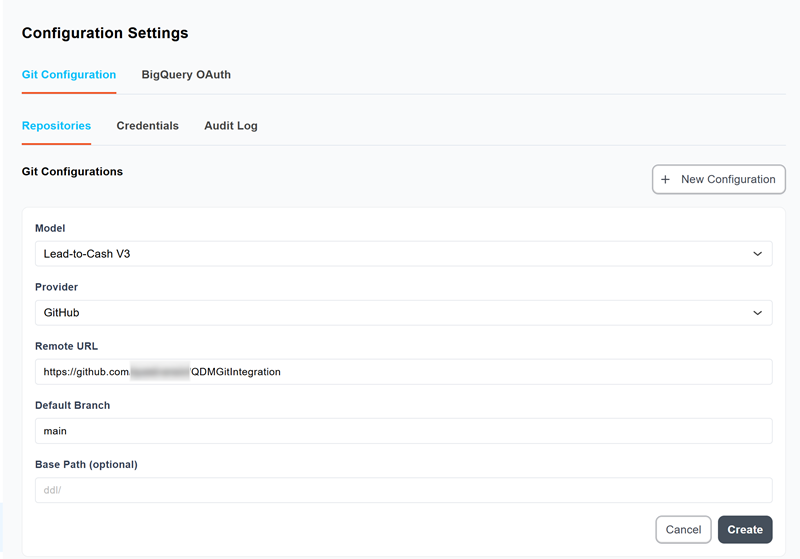
Select New Configuration.
The Git Configuration page opens.
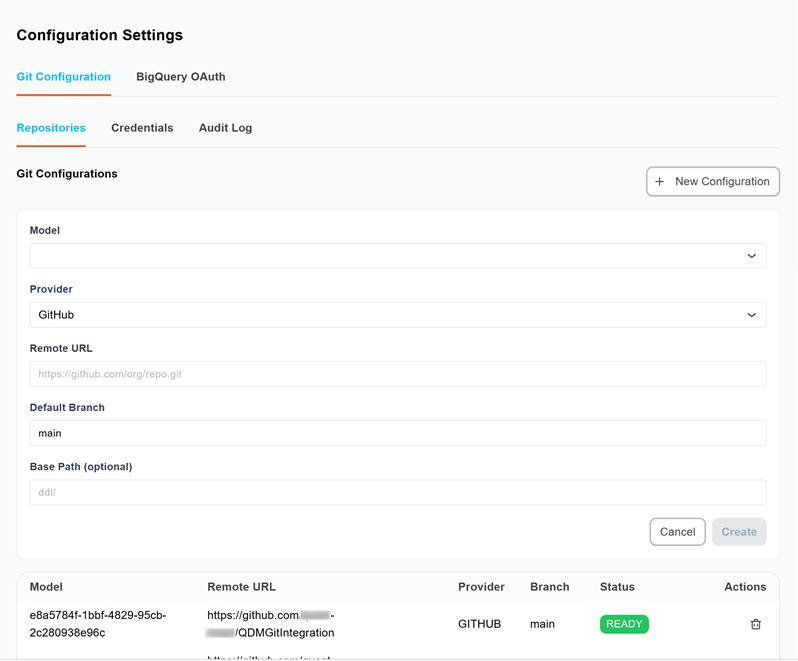
-
In the Model field, select a model to associate with the connection. For example, Lead-to-Cash V3.
-
In the Provider field, select the provider that hosts your repository. For example, GitHub.
-
Enter the remote URL of your repository, and confirm the default branch. For example, main.
-
Optionally, specify a base path to a folder.
-
Select Create.
Quest Data Modeler adds the configuration to the list with its current status.
Review the Git Audit Log
The Audit Log tab records every Git operation, such as clone, commit, push, pull, merge, branch, pull request, credential, and configuration changes, so you can track who did what and whether it succeeded. Each entry lists the Time, User, Operation, Branch, Details, Status, and Duration. Select Refresh to load the most recent activity.
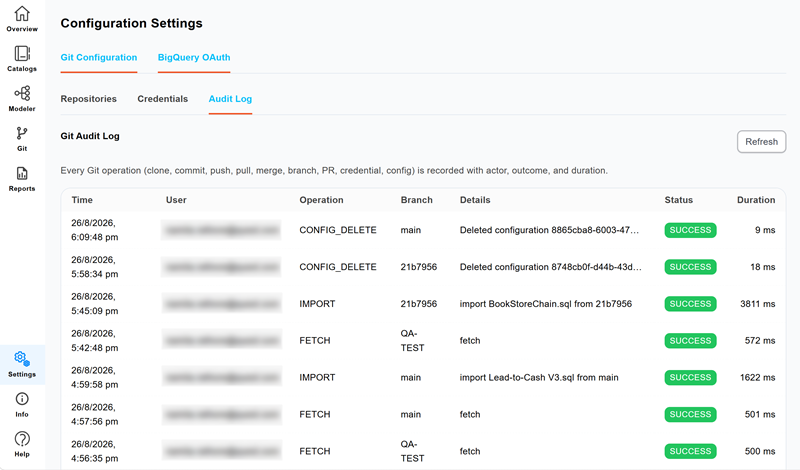
The audit log gives you a reliable record for troubleshooting failed operations and for confirming that team members follow the expected workflow.
For more information about the Git workflow, refer to the Establish a Git Workflow topic.